
Affiliate Disclosure: This article contains affiliate links to products I personally use and recommend. I earn a small commission if you purchase through these links, at no extra cost to you. My recommendations are based on hands-on testing and technical assessment—not commission rates.
Setting up automated emergency access is the most important step you can take for your digital estate. I learned this the hard way.
My dad passed in 2019. Heart attack, completely unexpected. He was 67 and still working.
The funeral was hard. The grief was harder. But you know what nobody warns you about? The absolute nightmare of trying to piece together someone’s digital life when they’re gone.
Dad had a Gmail account we couldn’t access. His bank required us to physically visit a branch with death certificates, probate documents, and three forms of ID. His Netflix kept charging mom’s credit card for four months because we couldn’t figure out the login. His Amazon account had years of ebook purchases we’ll never recover.
And dad wasn’t even that online. He had maybe 30 accounts total.
The average person today has around 100. All protected by passwords—and now passkeys—that vanish when you do.
So yeah. I think about digital estate planning now. Probably more than I should. That is why finding a reliable digital handover tool became my obsession.
TL;DR: The Quick Verdict (2026 Top Picks)
In a hurry? Here is the cheat sheet I used to secure my own family’s access.
⚠️ Important Disclaimer: I am a DevOps engineer, not an estate attorney. This guide focuses on the technical execution of digital access. Laws regarding digital assets (like RUFADAA) vary by state and country. Always consult a legal professional when drafting your will.
1. Bitwarden (My Personal Choice if you are a tech savvy)
Best For: Value hunters and tech-savvy users who want control.
- ✅ The Good: Unbeatable price ($19/year), open-source transparency, supports both “View” and full “Takeover” access, and fully supports Passkeys.
- ❌ The Bad: The interface is utilitarian and less “pretty” than competitors; setup requires digging into settings.
- Verdict: If you want powerful features for the price of a sandwich, this is it.
2. Keeper Security
Best For: Families and users who want a polished, guided experience.
- ✅ The Good: Slick, modern interface; very easy for non-tech relatives (parents/spouses) to understand; guided setup wizards.
- ❌ The Bad: Costs roughly 2x more than Bitwarden (~$39/year); requires you to share a password with the contact before you can add them as an emergency contact (weird quirk).
- Verdict: If you are willing to pay extra for a smoother design your spouse won’t complain about, choose Keeper.
3. 1Password
Best For: Security purists who prefer physical backups over digital timers.
- ✅ The Good: Uses a hack-proof “Emergency Kit” (PDF); no digital mechanism can be exploited by hackers; extremely polished app experience.
- ❌ The Bad: No automated fail-safe. If you update your master password but forget to print a new Kit, your heirs are locked out permanently.
- Verdict: Choose this if you trust a fireproof safe more than a cloud timer.
In this guide:
- What is a password manager with legacy contact?
- Bitwarden emergency access setup
- Keeper emergency access features
- 1Password Emergency Kit approach
- Full comparison table
- Legal requirements (RUFADAA & AI Assets)
- My actual setup
- FAQ
What Is a Password Manager With Legacy Contact?
At its core, this software is an encrypted vault that stores your credentials, but with one crucial addition: a “dead man’s switch.“
A password manager with legacy features allows you to designate a trusted person—like a spouse or child—who can request access to your vault if you die or become incapacitated.
This solves a specific problem that traditional wills cannot: it gets your family into your online accounts without them needing to fight customer support at Google, Apple, or your bank.
How the top tools handle this:
- Digital Handover (Bitwarden & Keeper): These tools use “Emergency Access.” Your contact requests entry, a timer starts (e.g., 7 days), and if you don’t decline the request before the timer runs out, they are granted access automatically.
- Analog Handover (1Password): They rely on a physical “Emergency Kit.” This is a printable PDF document with your secret keys that must be physically stored and physically retrieved by your heir.
Without this specific setup, your encrypted vault becomes a digital grave. By design, not even the software company can crack it open. That is excellent security while you are alive, but it is an absolute nightmare for your family when you are gone.
How Emergency Access Works in Bitwarden
I switched to Bitwarden about two years ago after getting fed up with LastPass (remember that breach?). Moved my wife over too, though she complains about it constantly. “Why can’t it just work like Chrome does?” Because Chrome’s security is trash, honey. That’s why.
If you need a cost-effective solution for your digital heirs, Bitwarden is the gold standard. You pick someone you trust, they make a Bitwarden account, and you designate them as your emergency contact. If something happens to you, they request access, wait out a timer you set, and then they’re in.
2026 Update: Bitwarden now fully supports Passkeys in emergency access. This is critical because many sites (like Google and Amazon) are replacing passwords with passkeys. If your emergency contact gets access to your vault, they get your passkeys too, allowing them to log in without needing your phone for 2FA.
The wait timer is the clever part. If someone tries to access your vault while you’re alive, you get an email and can reject it. If you’re dead or in a coma, the timer runs out and they get in automatically.
Step-by-Step: Setting Up Bitwarden Emergency Access
Here’s exactly how to set up emergency access in Bitwarden:
- Log into your Bitwarden web vault (must be the web version).
- Click Settings in the left sidebar.
- Click Emergency Access.
- Click Add emergency contact.
- Enter your trusted contact’s email address.
- Choose access level: View (read-only) or Takeover (full control).
- Set wait period (1 day to 90 days – I recommend 7 days).
- Click Save.
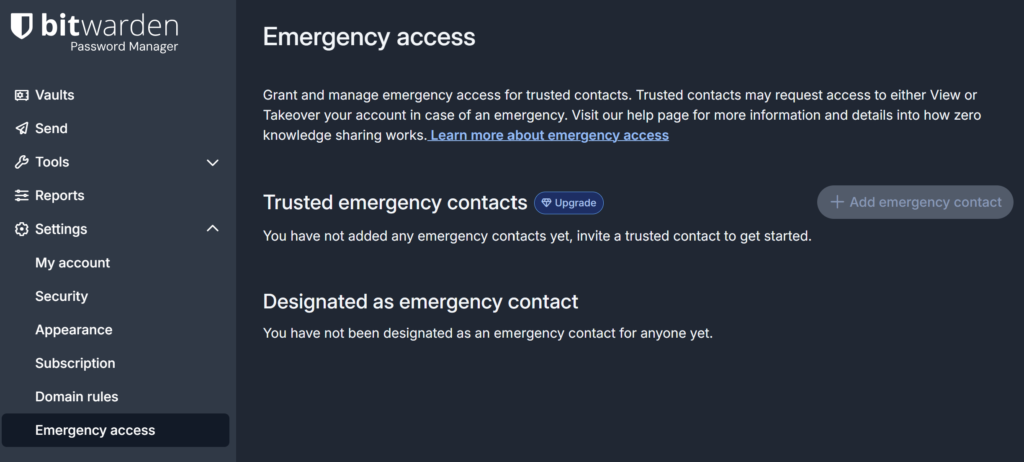
Here is what the user interface looks like from a demo account I have created.
Your contact receives an email invitation. Once they accept, you must click Confirm in your vault to finalize it. This handshake is required for the encryption keys to sync.
Why I Stuck With Bitwarden
Bitwarden Premium costs $19 a year. In 2026, where every other subscription has hiked prices to $40 or $50, Bitwarden keeping this price point is miraculous.
I’m a DevOps engineer, so I like the open-source nature. My wife hates the interface, but she tolerates it because it works.
Keeper Emergency Access Features
I’ve tried Keeper too. Here’s the deal.
Keeper acts as a solid alternative for families. You pick up to five trusted contacts, set a wait period, and they can request access. When the timer ends, they get read-only access to your vault.
The interface is slicker than Bitwarden. Setup is more guided. But you pay for that polish.
One annoying quirk: Keeper requires you to have a “sharing relationship” with the contact first. I had to share a random password with my brother before the Emergency Access invite would actually work. Not a huge deal, just weird and not documented clearly.
Step-by-Step: Setting Up Keeper Emergency Access
Keeper’s process is polished but requires the recipient to be an active Keeper user first.
- Log in to the Keeper Web Vault (keepersecurity.com).
- Click the Account dropdown (your email address) in the top right corner.
- Select Account Emergency Access.
- Click Trusted Users > Add.
- Enter your trusted contact’s email address.
- Select the Access Delay from the dropdown (e.g., 7 days).
- Click Send.
Important Note: Your contact must have a Keeper account (a free account works fine) to accept this invitation. If they don’t have one, the email they receive will prompt them to create it first. Once they create it, you may need to resend the invite if the status hangs on “Pending.”
Keeper vs Bitwarden for Digital Estate Planning
- Max contacts: Keeper allows 5; Bitwarden is unlimited.
- Access type: Keeper is read-only; Bitwarden offers View or Takeover.
- Pricing: Keeper Personal is ~$39/year; Bitwarden is $19/year.
1Password Emergency Kit: The Analog Approach
While most competitors operate as automated digital vaults, 1Password takes a different, analog approach. They don’t have an automated digital timer system.
This is a PDF document containing your sign-in address, email, Secret Key, and a blank space to write your master password.
The idea: You print this out, write your password on it, and put it in a fireproof safe or safety deposit box.
Pros: It’s hack-proof. No digital timer can be exploited.
Cons: If you change your master password and forget to print a new Kit, your family is locked out forever.
Step-by-Step: Retrieving Your 1Password Emergency Kit
Because 1Password relies on a physical document rather than a digital setting, you need to download this PDF and prepare it manually. Do not save this purely as a digital file—if your computer crashes or is locked, the file is gone.
Here is how to get it:
- Log in to your account at 1Password.com (you must use the web browser, not the app).
- Click your Name in the top right corner.
- Select Get Emergency Kit from the dropdown menu.
- Click Download PDF.
- Crucial Step: Print the document.
- Write your Master Password in the blank space provided (it is not printed automatically for security reasons).
- Store this paper in your fireproof safe or with your will.
Pro Tip: I recommend printing two copies. Give one to your executor (in a sealed envelope) and keep one in your own safe. If you ever change your master password, you must print a new Kit immediately—the old one becomes useless.
Password Manager Comparison (2026)
| Feature | Bitwarden | Keeper | 1Password |
| Emergency Access Type | In-app digital request | In-app digital request | Paper “Emergency Kit” |
| Setup Difficulty | Medium (Hidden in settings) | Easy (Guided Wizard) | Easy (Print & Hide) |
| Passkey Support | Yes (Transferable) | Yes | Yes (Via Kit) |
| Wait Period | 1 to 90 days | Immediate to 3 months | None (Instant w/ paper) |
| Access Levels | View or Takeover | Read-only | Full Account Access |
| Annual Cost (Individual) | ~$19.80 | ~$39.99 | ~$36.00 |
| Best For | Value & Tech-Savvy | UX & Design Lovers | Physical Backup Fans |
Executor Access: What the Law Says (2026 Update)
Using a ‘dead man’s switch’ is the practical solution, but you need to know the legal landscape.
RUFADAA and Digital Assets
Most states use RUFADAA (Revised Uniform Fiduciary Access to Digital Assets Act). This law treats digital files like physical property. However, it distinguishes between the content of communications (emails, texts) and the catalogue (list of contacts).
Without explicit permission in a will or a tool like a password manager, Google and Apple are legally allowed to deny your executor access to the content of your emails to protect your privacy—even after death.
New for 2026: AI and Crypto
If you hold assets in AI-generated content (monetized YouTube channels, AI art portfolios) or Cryptocurrency, these are now scrutinized heavily in probate.
- Crypto: If you don’t leave the keys (or a password manager entry), the money is burned. It’s gone.
- Digital Business Assets: Courts are beginning to recognize revenue-generating agency websites, “digital likeness,” and AI accounts as taxable assets.
My recommendation: Name your executor as your specific “Digital Executor” in your will, and ensure they are your emergency contact in your password manager.
My Digital Estate Planning Setup
Here is exactly how I configured my digital estate plan as of January 2026:
- Primary Tool: Bitwarden Premium ($19/yr).
- Emergency Contact: My wife (Wait period: 7 days).
- Backup Contact: My brother (Wait period: 14 days).
- Physical Backup: A YubiKey and a paper copy of my master password in a fireproof bag.
- Passkeys: All strictly saved in Bitwarden, not on my device, ensuring my wife can access them via the vault.
Frequently Asked Questions
Can my family access my passwords after I die without a plan?
Rarely. Without a designating a digital executor, your encrypted data is inaccessible. Companies like Apple and Google generally will not unlock an account for survivors without a court order, and even then, they may only provide data dumps, not login access.
Which password manager is best for digital legacy?
Bitwarden is the best value at $19/year with flexible access control. Keeper is excellent if you want an easier interface. 1Password is best if you prefer a physical paper trail over digital automation.
Is it safe to use the emergency access feature?
Yes. The “wait time” prevents abuse. If a contact requests access while you are alive, you get an immediate email notification and can deny the request with one click.
Does emergency access work for Passkeys?
Yes. If you store your Passkeys inside Bitwarden or Keeper (rather than just on your iPhone), your emergency contact will be able to use them to log into your accounts just as easily as using a password.
Is Chrome’s built-in password manager safe for digital legacy?
No. Chrome’s password manager lacks emergency access features entirely. When you die, your Chrome passwords are locked behind your Google account—which itself requires your password to access. Google’s Inactive Account Manager provides data downloads, not login access. Additionally, Chrome passwords stored locally can be extracted by malware with relative ease compared to dedicated password managers.
What happens if my emergency contact tries to access my vault while I’m alive?
You receive an immediate email notification. During the entire wait period, you can deny the request with one click. The request is also logged in your vault’s activity history. If you’re alive and checking email normally, you’ll catch any unauthorized attempt long before access is granted.
Can I have multiple emergency contacts with different wait periods?
Yes, with Bitwarden. You can designate unlimited contacts, each with their own wait period and access level. I use this to create redundancy—my wife has 7-day access, my brother has 14-day access. Keeper limits you to 5 contacts.
How often should I review my emergency access settings?
Annually, or whenever major life changes occur (marriage, divorce, death of an emergency contact, family estrangement). I do a quarterly review of my vault contents but only audit emergency access settings yearly.
Last updated: January 2026
Elon is a Cloud/DevOps engineer with over 9 years of IT experience. He writes about cybersecurity, password management, and digital estate planning based on real-world experience helping his own family navigate these challenges after his father’s unexpected death in 2019. He personally uses Bitwarden as his daily password manager.