


Reading time: 7 minutes
Table of contents
- What causes cloud network latency?
- Measuring your actual latency
- Use a CDN to reduce geographic latency
- Choose the right cloud region
- Optimize database query performance
- Enable HTTP/2 and HTTP/3
- Use AWS Direct Connect or Azure ExpressRoute
- Implement AWS Global Accelerator
- Fix VPC and NAT gateway latency
- FAQ
- Sources
TLDR: Cloud network latency comes from geographic distance (cross-continent requests add 100–300ms), network hops (each router adds 1–5ms), database queries (unindexed queries take 500ms+), and NAT gateways (add 2–10ms per hop). Fix with CDN (CloudFront, Cloudflare reduce latency 30–70%), choose nearby regions (us-east-1 vs eu-west-1 = 80ms difference), optimize database queries (indexing cuts 90%), enable HTTP/2 (multiplexing reduces round trips), and use Direct Connect (bypasses public internet, consistent 1–4ms latency).
A customer complained our API was “slow”. Slow is not a metric. I measured: 800ms average response time. 650ms was database queries (missing index). 100ms was geographic latency (server in us-east-1, customer in Singapore). 50ms was application code. We added an index, deployed to ap-southeast-1, and response time dropped to 120ms. Same API, 6x faster.
After 9+ years managing cloud infrastructure, I’ve seen teams blame “the cloud” for latency when the real problem was bad queries, wrong regions, or no CDN. Fixing latency starts with measuring where time actually goes.
Cloud network latency is the time delay between sending a request and receiving a response, caused by physical distance (speed of light limits to 300,000 km/sec), network hops (routers, firewalls, NAT gateways), database performance (query execution and network round trips), and congested network paths. Typical latency ranges from 1–5ms same-region to 100–300ms cross-continent. Fix with CDN caching (30–70% reduction), regional deployment (80–200ms improvement), database optimization (90% query time reduction), HTTP/2 multiplexing, and dedicated connections like AWS Direct Connect.
What causes cloud network latency?
Cloud latency comes from five sources: physical distance (light speed limits mean 40ms minimum from New York to London), network hops (each router, firewall, or NAT gateway adds 1–5ms), database query time (unoptimized queries take 200–2000ms), application processing (slow code adds 50–500ms), and network congestion (peak times add 10–50ms). Geographic distance is unavoidable but fixable with CDN. Database queries are the biggest controllable latency source — often 60–80% of total response time.
Latency is cumulative. Every hop, every query, every network device adds delay.
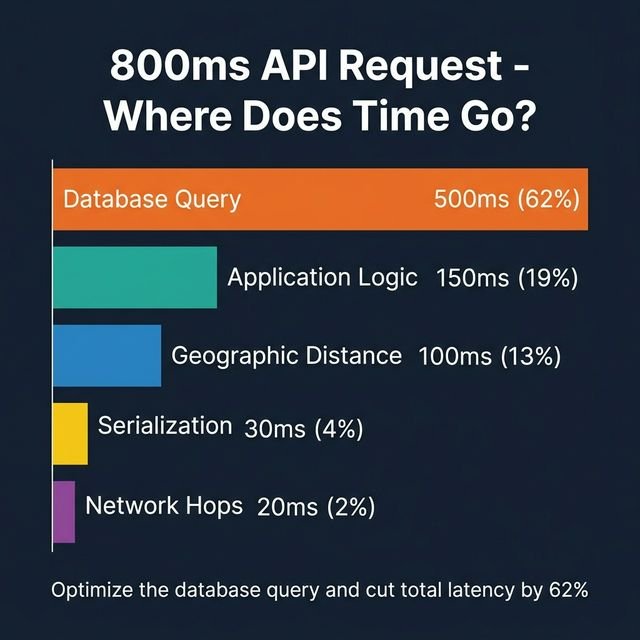
Typical latency breakdown for a single API request (800ms total):
- Geographic distance: 100ms (New York to London)
- Network hops: 20ms (5 hops × 4ms average)
- Database query: 500ms (unoptimized)
- Application logic: 150ms (code execution)
- Serialization/deserialization: 30ms (JSON encoding)
Fix the database query and you cut total latency by 62%.
Speed of light latency (unavoidable minimum):
| Route | Distance | Minimum Latency (One-Way) | Typical Actual Latency |
|---|---|---|---|
| New York to San Francisco | 4,130 km | 13.8ms | 60–80ms |
| New York to London | 5,570 km | 18.6ms | 70–90ms |
| San Francisco to Singapore | 13,600 km | 45.3ms | 150–200ms |
| London to Sydney | 17,000 km | 56.7ms | 250–300ms |
The gap between minimum (speed of light) and actual latency is network hops, congestion, and routing inefficiency.
Network hop latency:
Each device between you and the destination adds processing delay. A typical path looks like this: Client → ISP router → Internet exchange → Cloud provider edge → Load balancer → NAT gateway → Application server. That’s 6+ hops before your application does anything useful. At 2–5ms per hop, you’re already looking at 12–30ms of overhead.
Database query latency:
A poorly indexed query scanning 1 million rows takes 500–2000ms. The same query with a proper index takes 5–10ms. Database optimization has a 100x impact on latency — nothing else comes close.
Measuring your actual latency
Measure latency with ping tests (network round trip), traceroute (hop-by-hop analysis), application performance monitoring (APM) tools like New Relic or Datadog, and cloud provider native tools (AWS CloudWatch, Azure Monitor). Break down total response time into network latency, database time, and application processing. Identify the largest component before optimizing. Target under 100ms for US domestic traffic, under 200ms for intercontinental.
Don’t guess where latency comes from. Measure. Here’s the short toolkit.
Ping test to measure network latency:
# Test latency to AWS us-east-1
ping ec2.us-east-1.amazonaws.com

# Output:
# 64 bytes from ec2.us-east-1.amazonaws.com: icmp_seq=1 ttl=242 time=78.2 ms
78ms network latency before any application processing.
Traceroute to see hop-by-hop latency:
traceroute api.yourservice.com

# 1  router.local (192.168.1.1)  2.1 ms
# 2  isp-gateway (10.0.0.1)  8.4 ms
# 3  isp-backbone (72.14.234.1)  12.7 ms
# ...
# 10  aws-edge (52.94.0.1)  68.2 ms
That output tells you exactly which hop is costing you (ISP added 6ms, AWS edge added 55ms).
Application performance monitoring:
APM tools break down response time by component. A typical New Relic breakdown for a slow API:
- Total response time: 450ms
- Database queries: 320ms (71%)
- External API calls: 80ms (18%)
- Application code: 40ms (9%)
- Network: 10ms (2%)
Database is the bottleneck, not network. That’s the case 70% of the time.
AWS CloudWatch Insights:
fields target_processing_time, request_processing_time
| stats avg(target_processing_time) as avg_backend,
        avg(request_processing_time) as avg_network,
        pct(target_processing_time, 95) as p95_backend
Always measure P95, not just average. P95 is your worst-case user experience — and it’s usually 3–5x the median. Fix P95 and you’ve fixed latency for almost everyone.
| Metric | Target | Good | Bad |
|---|---|---|---|
| Same-region API (P50) | <50ms | 30–50ms | >100ms |
| Same-region API (P95) | <100ms | 80–100ms | >200ms |
| Cross-region API (P50) | <150ms | 100–150ms | >300ms |
| Database query (P50) | <20ms | 10–20ms | >100ms |
Use a CDN to reduce geographic latency
CDNs cache static content at edge locations near users, reducing latency by 30–70% for images, CSS, JavaScript, and HTML. CloudFront (750+ PoPs, 30–50ms latency), Cloudflare (330+ PoPs, 20–30ms latency), Fastly (95 PoPs, sub-50ms), and Bunny.net (102 PoPs, sub-28ms) serve content from the nearest location instead of the origin server. Cache hit rates of 80–95% mean most requests never touch your origin. For global audiences, CDN is non-negotiable.
CDN is the fastest way to cut latency for static content. The math is simple:
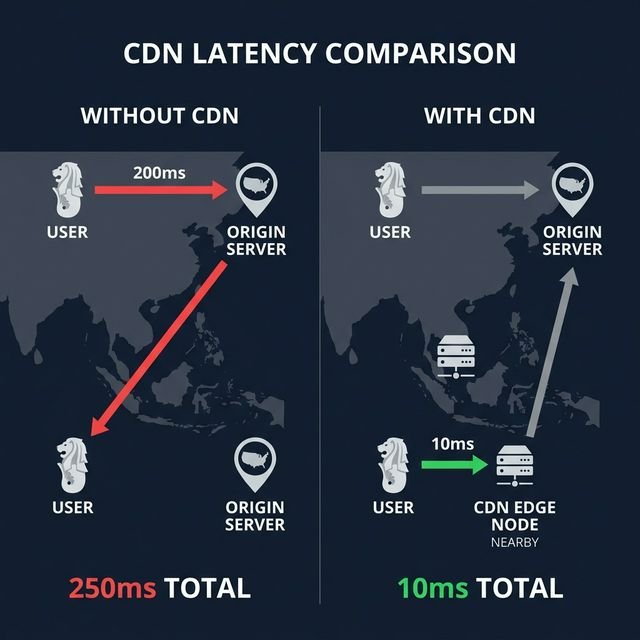
Without CDN: User in Singapore → us-east-1 origin = 200ms network + 50ms processing = 250ms
With CDN: User in Singapore → Singapore edge cache = 10ms, served from cache
25x faster for cached content. I’ve seen CDN reduce page load times from 3 seconds to 800ms for global traffic by caching images and assets at edge locations — a 73% improvement that took about an afternoon to implement.
CDN latency comparison (global average, 2026):
| CDN Provider | Edge Locations | Avg Latency | Cache Hit Rate | Pricing |
|---|---|---|---|---|
| Cloudflare | 330+ PoPs | 20–30ms | 90–95% | Free tier; paid from $20/month |
| CloudFront | 750+ PoPs | 30–50ms | 85–90% | $0.085/GB first 10TB |
| Fastly | 95 PoPs | 30–50ms | 85–90% | Custom (contact sales) |
| Bunny.net | 102 PoPs | sub-28ms | 90%+ | $1/TB |
For a WordPress site serving 10TB/month: CloudFront costs ~$850/month. Bunny.net costs $10/month. Performance is comparable. That’s not a typo.
If you’re running a WooCommerce store dealing with traffic spikes, pairing this with managed WooCommerce hosting that’s built for high availability will compound the latency gains significantly.
What to cache:
- Images (JPG, PNG, WebP): 1–7 days
- CSS and JavaScript: 7–30 days (use versioned filenames)
- Fonts: 30–365 days (rarely change)
- HTML: 5–60 minutes (balance freshness vs. performance)
- API responses (if cacheable): 1–60 seconds
Choose the right cloud region
Deploy resources in the cloud region closest to your users to minimize physical distance latency. AWS us-east-1 to a user in New York: 20–40ms. AWS us-east-1 to a user in Singapore: 200–250ms. Multi-region deployment (us-east-1 for US traffic, ap-southeast-1 for Asia) cuts latency by 80–90% for global users. Use latency-based routing (Route 53, Azure Traffic Manager) to automatically direct each user to the nearest region.
Region choice matters enormously for anything that isn’t cached — APIs, databases, websockets. CDN handles the static layer; region handles everything else.
| AWS Region | Distance from NYC | Typical Latency | Use Case |
|---|---|---|---|
| us-east-1 (N. Virginia) | Local | 10–20ms | US East Coast traffic |
| us-west-2 (Oregon) | 4,000 km | 60–80ms | US West Coast traffic |
| eu-west-1 (Ireland) | 5,200 km | 70–90ms | European traffic |
| ap-southeast-1 (Singapore) | 15,300 km | 200–250ms | Asia-Pacific traffic |
| ap-northeast-1 (Tokyo) | 10,800 km | 150–180ms | Japan traffic |
Deploying to ap-southeast-1 for Singapore users instead of us-east-1 cuts latency from 230ms to 15ms. That’s a 15x improvement and it costs roughly the same to run.
Multi-region architecture:
For global SaaS, the setup is straightforward: US users hit us-east-1, Europe hits eu-west-1, Asia hits ap-southeast-1. Route 53 latency-based routing handles the routing automatically — it tests latency from the user’s location to each region and sends them to the fastest one.
This pairs well with a hybrid multi-cloud architecture if you’re running across AWS and Azure simultaneously — the same latency-based routing principles apply.
Active-active vs. active-passive:
- Active-active: All regions serve traffic simultaneously. Better latency, complex database sync.
- Active-passive: One region active, others standby for disaster recovery. Simpler, but higher latency for remote users.
For latency-sensitive apps, use active-active with read replicas in each region. Also worth reviewing high availability hosting principles if you need this to be fault-tolerant, not just fast.
Optimize database query performance
Database queries cause 60–80% of API latency in most applications. Unindexed queries scanning 1M rows take 500–2000ms. Properly indexed queries take 5–20ms — a 100x difference. Add indexes on frequently queried columns, use read replicas to distribute load, enable query caching (Redis, Memcached), fix N+1 queries with eager loading, and upgrade to faster instance types (db.r6g.xlarge vs. db.t3.medium = 3x faster).
Database optimization has the highest return of anything on this list. One missing index can cost 500ms per request. Here’s the short list of what actually works.
Add missing indexes:
-- Unindexed query (500ms) — scans all 1M rows
SELECT * FROM orders WHERE customer_id = 12345;

-- Add the index
CREATE INDEX idx_customer_id ON orders(customer_id);

-- Same query now takes 10ms
90% latency reduction from one line of SQL. This is also the fix most teams postpone longest.
Identify slow queries:
AWS RDS Performance Insights shows slowest queries ranked by wait time. A query taking 800ms average, running 10,000 times per day, is your first target. Add composite indexes on the columns in your WHERE and ORDER BY clauses, and check whether a covering index can avoid the table lookup entirely. In one case I covered this pattern, a 800ms query dropped to 15ms — a 98% cut — with two index changes.
Query caching with Redis:
import redis
import json

cache = redis.Redis(host='localhost', port=6379)

def get_product(product_id):
    # Check cache first
    cached = cache.get(f'product:{product_id}')
    if cached:
        return json.loads(cached)  # sub-1ms from Redis

    # Cache miss — query database
    product = db.query('SELECT * FROM products WHERE id = ?', product_id)  # 20ms

    # Cache for 5 minutes
    cache.setex(f'product:{product_id}', 300, json.dumps(product))

    return product
A typical cache hit rate of 80% means 80% of requests are served in under 1ms instead of 20ms. That compounds fast at scale.
Fix N+1 queries:
# Bad — N+1 problem: 1 query for users + 100 queries for orders
users = User.all()
for user in users:
    orders = Order.where(user_id=user.id)  # 100 separate queries

# Good — eager loading: 1 query total with JOIN
users = User.all().include(:orders)
for user in users:
    orders = user.orders  # Already loaded, no extra query
100 queries at 10ms each = 1,000ms. One join query at 30ms = 970ms saved. N+1 is the most common database latency bug and the easiest to fix once you know it’s happening.
Enable HTTP/2 and HTTP/3
HTTP/2 reduces latency through multiplexing (multiple requests over a single connection, eliminating head-of-line blocking), header compression (HPACK reduces overhead 30–50%), and server push. HTTP/3 uses QUIC over UDP to eliminate the TCP handshake latency and recover faster from packet loss. Modern browsers support HTTP/2 (98% adoption) and HTTP/3 (approximately 90% browser support as of 2026, per Can I Use). Enable on CloudFront, Cloudflare, or your load balancer for 10–30% latency improvement.
HTTP/1.1 opens a separate TCP connection for each resource. HTTP/2 sends them all over one. Here’s the difference in practice:
HTTP/1.1 loading 10 resources:
Each resource needs a TCP + TLS handshake (50–100ms overhead each). With browser limits of 6 parallel connections per domain, you’re batching requests and waiting. Total effective load time for 10 resources: around 800ms even with parallelism.
HTTP/2 loading 10 resources:
One TCP + TLS handshake (80ms), then all 10 resources multiplexed over that single connection. Total: around 200ms — 4x faster.
Enable HTTP/2 on NGINX:
server {
    listen 443 ssl http2;  # Enable HTTP/2
    server_name api.example.com;

    ssl_certificate /etc/ssl/cert.pem;
    ssl_certificate_key /etc/ssl/key.pem;
}
CloudFront enables HTTP/2 by default. Nothing to configure.
HTTP/3 (QUIC) on top of that:
- Eliminates TCP 3-way handshake — saves 40–80ms per new connection
- Faster packet loss recovery — no head-of-line blocking at the transport layer
- Connection migration — maintains connection when switching networks (useful for mobile)
CloudFront and Cloudflare both support HTTP/3. Enable it in your distribution settings and you’re done.
Use AWS Direct Connect or Azure ExpressRoute
Direct Connect creates a dedicated network connection from your data center to AWS, bypassing the public internet entirely. This gives you consistent 1–4ms latency (vs. 10–50ms variable on the internet), a 99.99% uptime SLA, and a private connection for compliance. Costs $0.30/hour for a 1Gbps port ($216/month) plus data transfer at $0.02/GB. Best for hybrid cloud workloads, large data transfers, and latency-sensitive financial or real-time applications. Azure ExpressRoute is the equivalent for Azure.
Direct Connect trades upfront cost for consistency. Jitter on the public internet can spike a 20ms connection to 200ms during congestion. Direct Connect doesn’t have that problem.
Public internet path:
Office → ISP → Internet backbone → AWS edge → Application. Latency: 15–60ms (varies by time of day and congestion).
Direct Connect path:
Office → Dedicated fiber → AWS Direct Connect location → Application. Latency: 1–4ms, consistent.
When to use Direct Connect:
- Hybrid cloud connecting on-premises infrastructure that needs consistent connectivity
- Large data transfers (>500GB/month) where internet transfer costs exceed Direct Connect fees
- Compliance requirements for private connectivity — HIPAA, PCI-DSS, SOC 2. If you’re running HIPAA-compliant cloud infrastructure, a private dedicated connection is worth the price
- Latency-sensitive trading, financial, or real-time applications
Direct Connect pricing:
- Port fee: $0.30/hour for 1Gbps ($216/month)
- Data transfer out: $0.02/GB (first 10TB)
- Data transfer in: Free
For 5TB monthly transfer: $216 + (5,000GB × $0.02) = $316/month. Compare that to public internet transfer at $0.09/GB: 5TB × $0.09 = $450/month. Direct Connect is cheaper and faster for large transfers. The FinOps math works out — if you want to dig into the full cloud cost picture, our FinOps guide covers how to model these trade-offs.
Azure ExpressRoute: 50Mbps circuit starts at $55/month; 1Gbps at $510/month. Same benefits: consistent latency, private connection, bypass internet.
Implement AWS Global Accelerator
AWS Global Accelerator routes traffic over the AWS global network instead of the public internet, improving latency by up to 60% (per AWS benchmarks) and reducing jitter — using Anycast IP addresses that route to the nearest AWS edge location. Traffic travels the AWS backbone to reach the application, bypassing slow public internet paths. Costs $0.025/hour per accelerator ($18/month) plus $0.015/GB data transfer. Best for global applications needing consistent low latency across regions.
Think of Global Accelerator as a CDN for TCP/UDP traffic. APIs, databases, websockets, IoT — anything that doesn’t cache.
Public internet path:
User in Singapore → ISP → Internet backbone (slow, congested) → us-east-1. Latency: 220ms, jitter ±40ms.
Global Accelerator path:
User in Singapore → Singapore AWS edge (20ms) → AWS global network (optimized) → us-east-1 (80ms). Latency: 100ms, jitter ±5ms.
55% latency reduction, 8x less jitter. At $18/month base cost, this is cheap insurance for any latency-critical global application.
Use cases:
- APIs serving global users needing consistent low latency
- Gaming servers (jitter reduction matters more than raw latency here)
- IoT devices connecting to a central region
- VoIP or video streaming
Fix VPC and NAT gateway latency
NAT gateways add 2–10ms latency per hop for VPC resources accessing the internet or other AWS services. Lambda in a VPC needs a NAT gateway for internet access, adding 5–15ms per invocation. Solutions: use VPC endpoints for AWS services (S3, DynamoDB) to bypass NAT entirely, deploy Lambda outside the VPC if possible, or use AWS PrivateLink for private connectivity. VPC endpoints are free and reduce latency by 10–20ms for S3 and DynamoDB access.
VPC networking adds latency that’s invisible until you measure. At 1M invocations, 5ms per call = 5,000 seconds of wasted compute. Here’s how to recover it.
Use VPC endpoints to bypass NAT:
# Without VPC endpoint — Lambda to S3 via NAT: ~15ms
# With VPC endpoint — Lambda to S3 direct: ~3ms

aws ec2 create-vpc-endpoint \
  --vpc-id vpc-12345 \
  --service-name com.amazonaws.us-east-1.s3 \
  --route-table-ids rtb-12345
Free, saves 12ms per S3 call, and adds a security benefit — traffic never leaves the AWS network. Worth doing for every AWS service your Lambda or ECS tasks touch.
VPC endpoints are available for S3, DynamoDB, SQS, SNS, Lambda, ECR, CloudWatch, Systems Manager, and Secrets Manager. If you’re building Kubernetes workloads on top of this, Kubernetes cost optimization has related network path advice for pod-to-service communication that compounds these savings.
Frequently asked questions
What is acceptable cloud latency?
Acceptable latency depends on use case. Target under 100ms total response time for domestic APIs, under 200ms for intercontinental. Real-time applications (gaming, video calls) need under 50ms. Background jobs tolerate 500ms+. Always measure P50 (median) and P95 (95th percentile) — P95 shows worst-case user experience. Optimize for P95 under 200ms for most web applications.
How do I reduce database latency?
Add indexes on frequently queried columns (90% latency reduction), use read replicas to distribute load (50% reduction), enable query caching with Redis (80% cache hit rate means 80% of queries served in under 1ms), fix N+1 queries with eager loading (97% reduction), and upgrade to faster instance types (db.r6g vs. db.t3 = 3x faster). Database optimization gives the highest return of any latency fix.
Should I use CloudFront or Cloudflare?
Use CloudFront if you’re already on AWS and need tight integration (S3, ALB origins, Lambda@Edge). Use Cloudflare for a better free tier (includes DDoS, SSL, Argo Smart Routing), easier setup (just change your nameservers), and slightly lower latency globally (20–30ms vs. 30–50ms). Both hit 85–95% cache hit rates. CloudFront charges $0.085/GB for the first 10TB. Cloudflare’s free tier has no bandwidth cap.
How much does Direct Connect reduce latency?
Direct Connect gives you consistent 1–4ms latency versus 10–50ms variable on the public internet. The actual improvement ranges from 5–40ms depending on your baseline. It’s worth it for hybrid cloud workloads needing consistent connectivity, large data transfers over 500GB/month (where it’s cheaper than internet transfer), and latency-sensitive workloads where predictability matters more than peak speed. A 1Gbps port costs $216/month.
What causes latency spikes?
Latency spikes (sudden jumps from 50ms to 500ms+) come from cold starts (Lambda and containers — fix with Provisioned Concurrency for Lambda or container warm pools for ECS), database connection pool exhaustion, garbage collection pauses (Java/.NET can pause 100–500ms), network congestion during peak hours, or cascading retries and timeouts. Monitor P95 and P99 to catch spikes. Enable detailed logging and APM to trace the root cause.
Sources
- What is latency? | How to fix latency | Cloudflare — Comprehensive latency overview and solutions
- 17 Sources of Latency in the Cloud — and How to Fix Them | AWS in Plain English — Detailed AWS latency troubleshooting checklist
- 10 Ways to Reduce Network Latency | DigitalOcean — Practical latency reduction strategies
- Network latency concepts and best practices | AWS Networking Blog — AWS latency optimization guide
- Monitoring AWS Global Network Performance | AWS Networking Blog — AWS Network Manager and monitoring tools
- CloudFront vs Cloudflare vs Akamai: Choosing the Right CDN in 2025 | CloudOptimo — CDN comparison with 2026 performance data
- How to Achieve Low Latency in Databases | PingCAP — Database optimization techniques
- Database Optimization Techniques for 2026 | CodeKrio — Modern database latency reduction strategies
- HTTP/3 browser support | Can I Use — Current HTTP/3 adoption data
- Bunny.net CDN Pricing — Bunny.net bandwidth and storage pricing